maks.co
Connect your Microsoft 365 mailbox
These steps let maks.co send and read your outreach email through Microsoft's own sign-in, so we never need your mailbox password. You register a small app in your Microsoft 365 account (Part 1), then sign in to it once with a code (Part 2).
Before you start
- Know which mailbox will send the outreach. In these steps it is called the outreach mailbox.
- Use a computer with a web browser. Open a private or incognito window, so the browser doesn't sign you in with a different Microsoft account.
- Microsoft says the person who registers an app must hold at least the Application Developer role. If Microsoft tells you that you can't register applications, see If Microsoft blocks a step.
Part 1: register the app
- Go to https://entra.microsoft.com (the Microsoft Entra admin center) and sign in as the outreach mailbox.
-
In the left menu, browse to Entra ID > App registrations.
On some screens the same place is under Identity >
Applications > App registrations.
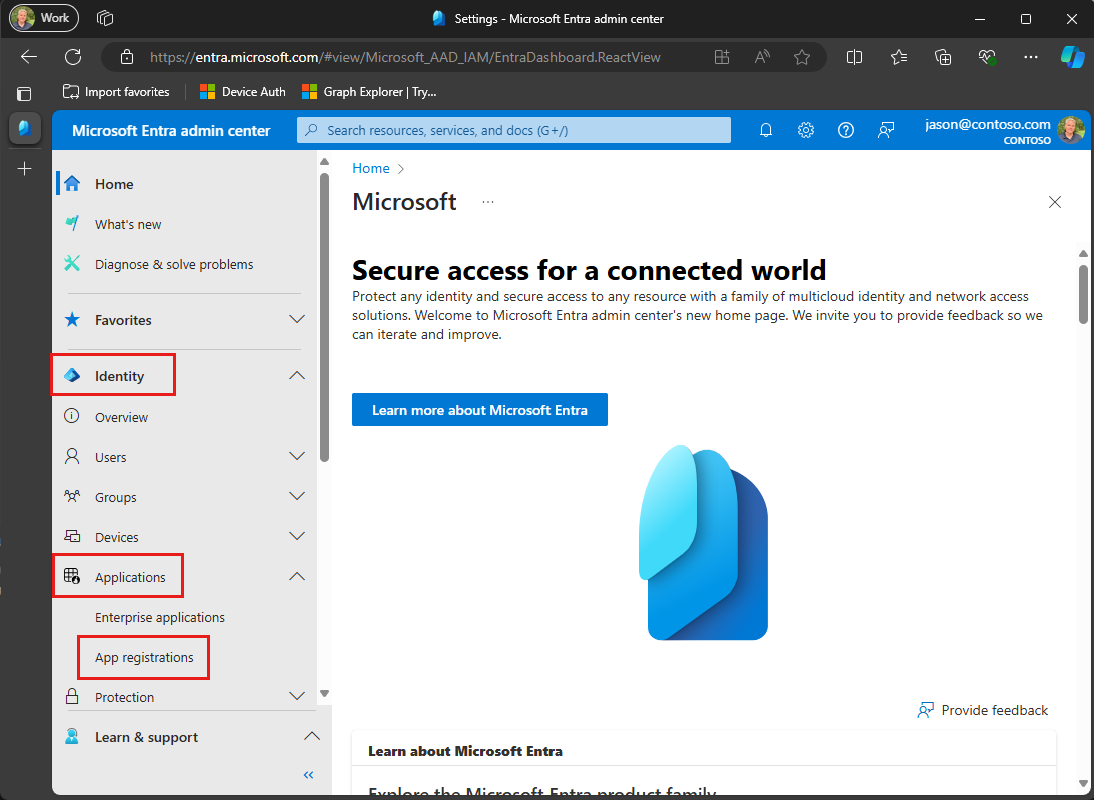
The older menu layout: Identity, then Applications, then App registrations. Newer screens show Entra ID, then App registrations. Screenshot: Microsoft. - Select New registration.
-
Fill in the form:
- Name:
maks.co outreach - Supported account types: choose Single tenant only - <your tenant>. Your screen shows your organization's name in place of <your tenant>. Some screens call this choice Accounts in this organizational directory only.
- Redirect URI: leave it empty.
- Name:
- Select Register.
-
The app's Overview page opens. Copy these two values and send them to your
maks.co contact. They identify the app and your organization. They are not passwords.
- Application (client) ID
- Directory (tenant) ID
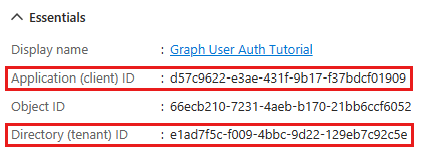
The two values to copy, on the Overview page. The values in this example are Microsoft's, not yours. Screenshot: Microsoft. -
Under Manage, select Authentication. Find the
Advanced settings section, set the Allow public client flows
toggle to Yes, and choose Save. The sign-in in Part 2 uses
this setting (Microsoft lists it as "No keyboard (Device Code Flow)").
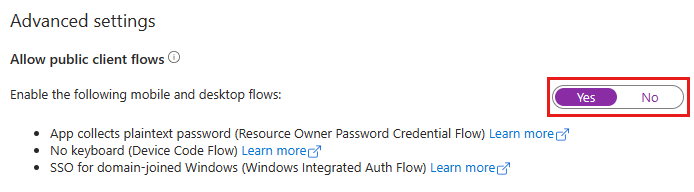
Allow public client flows set to Yes. Screenshot: Microsoft. -
Select API permissions > Add a permission >
Microsoft Graph, then select Delegated permissions.
Under Select permissions, tick these three:
offline_accessMail.ReadWriteMail.Send
User.Readis already on the list, because Microsoft adds it to every new registration. Leave it there.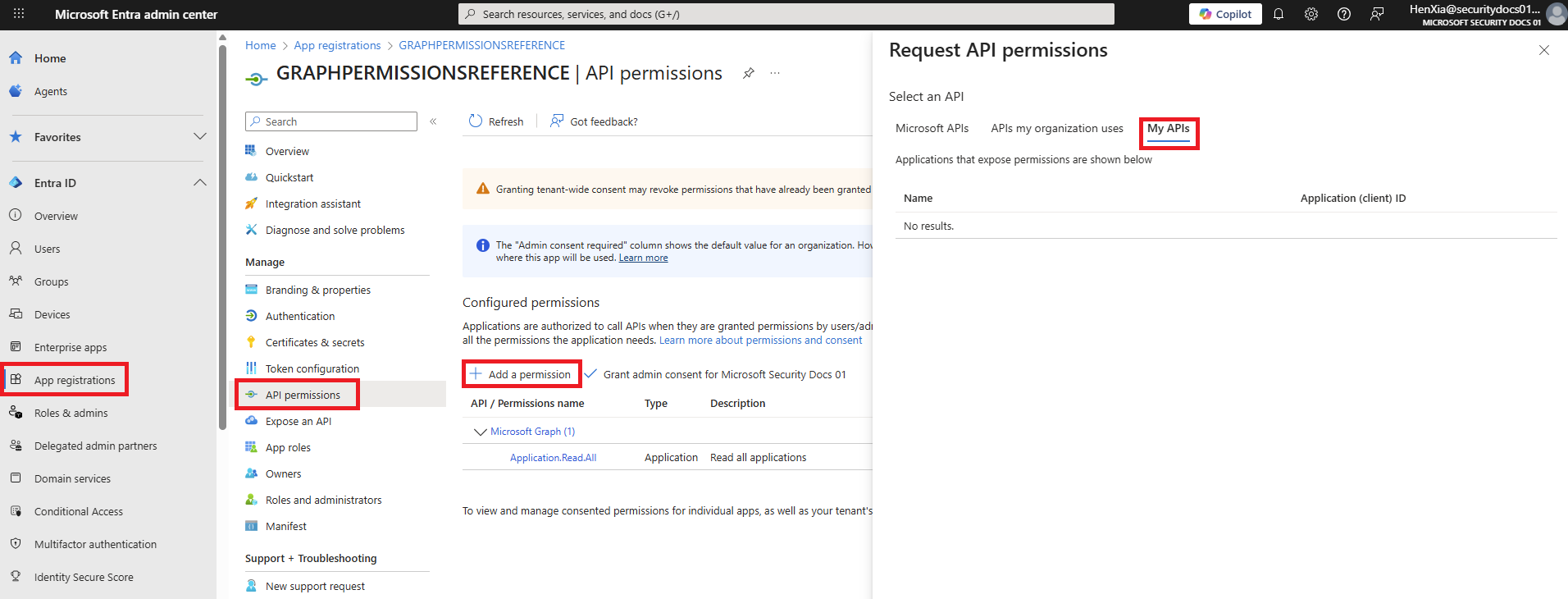
Where API permissions and Add a permission are. In the panel that opens, choose Microsoft Graph. This Microsoft screenshot shows the My APIs tab selected, which you don't need. Screenshot: Microsoft. Choose Delegated permissions, not Application permissions. Don't addMail.Send.Sharedor any other permission.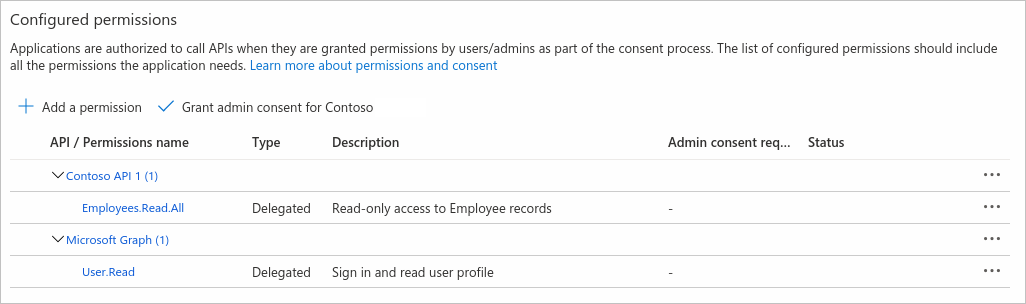
After you add them, your permissions appear under Configured permissions with the type Delegated. This example lists other permissions than yours. Screenshot: Microsoft.
Part 1 is done. Tell your maks.co contact, and agree on a time for Part 2.
Part 2: sign in once with a code
- At the agreed time, your maks.co contact sends you a web address and a short code.
Microsoft's guide shows the address as
https://microsoft.com/devicelogin. Use the address you receive. - Open the address in a private or incognito window and type the code.
- Sign in as the outreach mailbox with its own password. You type the password only on Microsoft's sign-in page.
- Microsoft lists the permissions from Part 1. Accept them.
Microsoft gives you 15 minutes from the moment the code is created. If the code expires, ask for a new one.
What the app can do
All four permissions are delegated. Microsoft describes delegated permissions as the kind for apps that access an API "as the signed-in user", so the app works as the outreach mailbox, the account that signs in during Part 2. Microsoft's own descriptions of each permission:
| Permission | Microsoft's name | Microsoft's description (delegated) |
|---|---|---|
User.Read | Sign in and read user profile | "Allows users to sign-in to the app, and allows the app to read the profile of signed-in users. It also allows the app to read basic company information of signed-in users." |
offline_access | "Maintain access to data you have given it access to" | |
Mail.ReadWrite | Read and write access to user mail | Lets the app read and change email in the mailbox. Microsoft adds: "Does not include permission to send mail." |
Mail.Send | Send mail as a user | "Allows the app to send mail as users in the organization." |
Sending on behalf of other people is a separate permission, Mail.Send.Shared
("Allows the app to send mail as the signed-in user, including sending on-behalf of others"). You
don't add it.
If Microsoft blocks a step
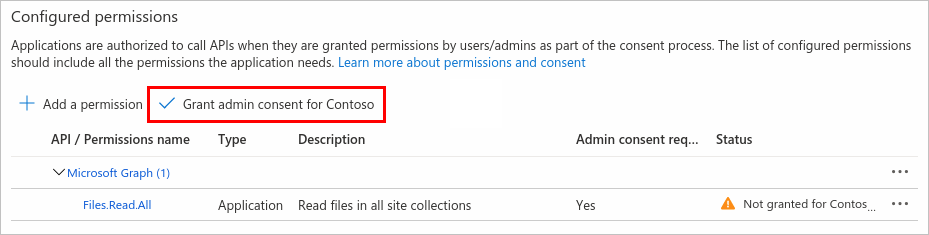
If Microsoft says you can't register applications, your account may need more rights. Microsoft's guide asks for at least the Application Developer role. If the sign-in in Part 2 says an administrator must approve the app, an administrator has to grant consent. In both cases, ask whoever administers your organization's Microsoft 365 account. If you bought Microsoft 365 through another company, that company may be the administrator. They can register the app for you, or open API permissions on the app and select Grant admin consent for <your tenant>.
If your maks.co contact says the sign-in failed because of public client flows, repeat Part 1 step 7.
Removing the app later
To end maks.co's access, delete the app registration. In the Microsoft Entra admin center, browse to Entra ID > App registrations, select maks.co outreach, select Delete on its Overview page, read the notice, tick the box if one appears, and select Delete again. Microsoft lists Cloud Application Administrator as the role for this step.